



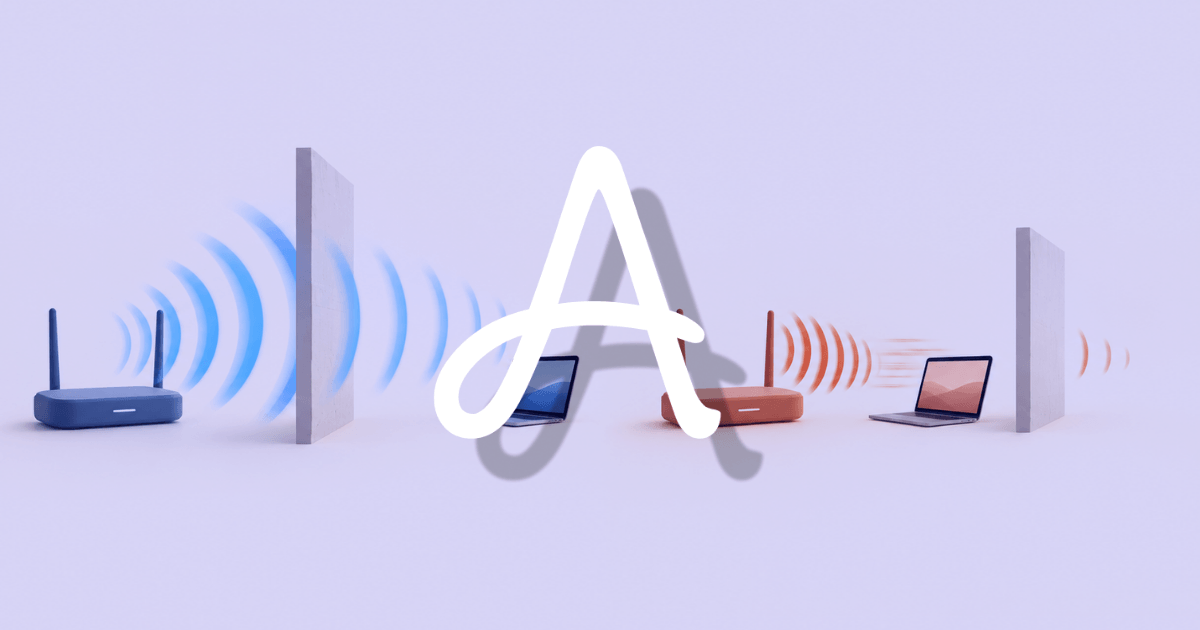
Before we dive deeper into the article, use 5 GHz Wi-Fi for laptops, phones, TVs and consoles when they have a reliable signal. Use 2.4 GHz for devices farther from the router or hardware that only supports that band. If both are available, choose the connection that works consistently where you use the device.
The decision comes down to three things: what the device supports, how much data it needs and what stands between it and the router. Here is how to make that choice without treating every gadget the same.
What does Wi-Fi frequency mean?
Wi-Fi frequency describes the radio band used for the wireless connection. The labels 2.4 GHz and 5 GHz identify bands, not the speed of your broadband plan. A compatible dual-band router can offer both, sometimes under one network name and sometimes as two separate networks.
The band also differs from the Wi-Fi generation. A device labelled Wi-Fi 6, for example, can support 2.4 GHz and 5 GHz. Check the device specifications for its actual band support rather than relying on the number in the Wi-Fi name.
| What matters | 2.4 GHz | 5 GHz |
|---|---|---|
| Coverage | Usually reaches farther and copes better with obstacles | Usually loses usable coverage sooner through distance and walls |
| Speed potential | Often lower on typical home equipment | Usually higher with a good signal and compatible equipment |
| Congestion | Shares space with many networks and household wireless devices | Offers more channel options, but can still be crowded |
| Compatibility | Often required by basic smart-home products and older devices | Both the router and device must support it |
These are tendencies, not guaranteed speeds or distances. Walls, interference, channel settings and the radios in your equipment all affect the result. There is no single Mbps figure that describes every connection on either band.
Which devices should use 5 GHz Wi-Fi?
Start with the device’s job, then check the signal at its usual location.
| Device or use | Start with | What to check |
|---|---|---|
| Laptop used for video calls | 5 GHz | Test from your desk for freezes and dropped calls, not just download speed |
| TV or streaming box | 5 GHz if supported and reliable | Compare playback on 2.4 GHz if the TV is several rooms away |
| Gaming console or PC | 5 GHz for wireless use | Watch for lag spikes; compare with Ethernet if available |
| Phone or tablet carried around the home | Automatic band selection where available | Check whether the connection stays usable in distant rooms |
| Smart plug, bulb or sensor | The band listed in its specifications, often 2.4 GHz | Follow its setup instructions rather than assuming it supports 5 GHz |
| Camera or printer far from the router | 2.4 GHz if supported | Confirm reliable operation at the installation point; a camera still needs enough capacity for its video |
For example, a work laptop beside the router and a smart plug in a back bedroom do not need the same connection. Give the laptop a chance to use 5 GHz, while the plug may need 2.4 GHz for compatibility and reach.
If a television still looks blurry after its connection is stable, check the source and playback settings too. Our guide to why a 4K TV may not look like 4K explains the other common causes.
Should you keep one network name or separate the bands?
If your router offers one network name for both bands and everything works, you can leave that arrangement in place. Features called Smart Connect or band steering help compatible devices use an appropriate band. The exact behaviour depends on the router and device.
Separate names can help when you want to test a specific band or troubleshoot a device’s setup. They also mean you may need to switch networks yourself. A name ending in “5G” is only a label chosen by the owner or manufacturer; check the router’s app or settings to confirm which band it represents.
For a smart-home device that will not connect, first check its supported band and setup guide. Use the router’s documented onboarding option if it provides one. Do not assume every 2.4 GHz-only device requires you to split the entire network.
How to test the best band in your home
- Stay where you normally use the device. A test beside the router will not tell you how well the bedroom connection works.
- Confirm the connected band. Look in the device’s network details or the router’s connected-device list, where available.
- Compare under similar conditions. Pause large downloads and repeat the same speed test on each band if you can select them separately. Keep the device in the same position.
- Try the actual task. Make a call, play your usual game or stream a programme. Note dropouts and buffering as well as speed.
- If both perform poorly, investigate beyond the band. Compare closer to the router and, where practical, with a wired connection. This helps narrow down a coverage problem versus a wider connection problem.
Changing bands cannot raise the speed limit of your internet plan. It can help when the wireless link is the bottleneck. If coverage is the problem, review router placement and the materials that can weaken a Wi-Fi signal before deciding you need new equipment.
Frequently asked questions
Is 5 GHz Wi-Fi the same as 5G mobile internet?
No. 5 GHz names a Wi-Fi radio band. 5G names a generation of mobile network technology. A phone can support one without supporting the other.
Why is 2.4 GHz faster than 5 GHz in my bedroom?
The 5 GHz signal may be weaker at that location, or its channel may be busier. Compare both from the same spot. Higher speed potential does not guarantee better performance through several walls.
Why can my phone see the 5 GHz network but my smart plug cannot?
The plug may support only 2.4 GHz. Check its specifications and setup instructions. A router setting cannot add a radio band that the device’s hardware does not support.
Should I turn off 2.4 GHz after connecting my laptop to 5 GHz?
Usually, keep it available for devices that need its reach or compatibility. Moving a capable laptop to 5 GHz does not mean the rest of the home must use the same band.
