



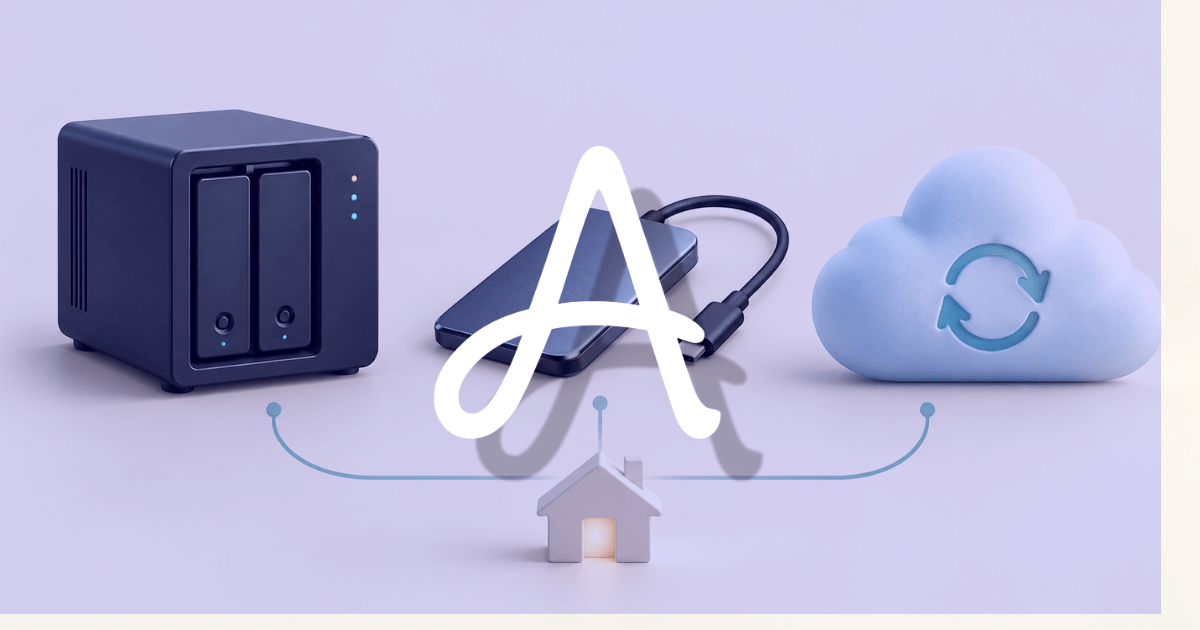
For a single home computer, an external SSD paired with an off-site backup is a practical starting point for storage backup. A NAS becomes useful when several devices need a shared backup destination. Cloud storage adds a copy away from home, but you need to check how it handles deleted files and older versions.
The right choice depends on what you want to recover: a few documents, a family photo library or an entire computer. Here is how the three options fit together.
Home storage backup: the quick comparison
| Consideration | External SSD | NAS | Cloud storage or backup |
|---|---|---|---|
| Best fit | One computer and portable local backups | Several devices and a central home archive | An off-site copy and remote recovery |
| What you pay for | Drive, replacement capacity and any backup software | Enclosure, drives, electricity and a separate backup destination | Plan capacity, subscriptions and any applicable restore charges |
| Recovery connection | Direct cable connection | Home network | Internet for files not already downloaded |
| Automation | Backup software runs when the drive is connected | Scheduled jobs while devices and NAS are reachable | Client uploads while the device is online, subject to its settings |
| Main weakness | Easy to forget, lose or keep beside the original | Needs maintenance; the whole unit can fail or be lost | Recovery depends on account access, retention and connectivity |
| Off-site protection | Only if stored elsewhere | Only with a separate remote copy | Yes, for data successfully uploaded to a remote provider |
These are different ways to store backup copies, not guarantees of recovery. The software, schedule and restore process matter as much as the destination.
External SSD: a straightforward local backup
An external SSD connects directly to your computer. It suits someone who wants a compact backup drive without managing a network storage device.
Use backup software that keeps earlier versions instead of repeatedly overwriting one folder. On a Mac, Time Machine supports automatic backups to external storage. On other systems, choose software that explicitly supports your operating system and intended recovery method.
A cable connection can make large local restores convenient, but advertised SSD speeds are not guaranteed backup speeds. The computer port, cable, drive and workload all affect transfers. Check compatibility before paying extra for a faster model.
The main trade-off is the routine. A disconnected drive cannot receive new backups. A drive left connected and writable may be affected by the same malware or accidental actions as the computer. Finish and verify the backup, safely eject the drive, and keep a separate off-site copy of important files.
Choose an external SSD if: you mainly protect one computer and can maintain a regular connection schedule. If portability and speed are less important, also compare an external hard drive when pricing the capacity you need.
NAS: useful when several devices need backups
A NAS, or network-attached storage device, holds files on your home network. Compatible backup applications can send data from multiple computers to it without moving a USB drive between them. Our guide to NAS and Cloud NAS introduces the broader storage options.
Check the specific model and software before buying. Computer backups, phone photo uploads, snapshots and full-system recovery are separate capabilities; support varies. Network speed also matters when transferring a large library.
RAID does not replace a backup
Some RAID configurations let a NAS tolerate a drive failure. That does not create an independent historical copy of your files. RAID 0 does not provide drive-failure redundancy at all.
If the only copy of your photos is on the NAS, it is your primary storage. If your computer still holds the originals and sends separate backup copies to the NAS, the NAS is a backup destination. Either way, theft or damage to the whole unit requires another copy elsewhere.
Snapshots can help recover earlier data when supported and configured, but snapshots stored only on the same NAS do not protect against losing that device.
Choose a NAS if: several people or computers need scheduled backups and someone will maintain updates, accounts, capacity and backup alerts. Include a separate backup destination in the budget.
Cloud storage: check recovery before capacity
Cloud storage services offer an off-site location without asking you to rotate physical drives. Their usefulness for backup depends on the service and how you configure it.
File sync keeps locations aligned. A backup should let you recover data after something goes wrong. For example, deleting a file in a synced OneDrive folder can also remove it from OneDrive. Recovery features may help, but a synced folder alone should not be your entire backup plan.
Before choosing a service, check:
- Coverage: does it protect selected folders, external drives, NAS files or a complete computer?
- Retention: how long are deleted files and older versions recoverable?
- Recovery: can you download your whole library, and are there transfer limits or charges?
- Privacy: what encryption is available, who controls the keys, and what happens if you lose them?
- Account access: can you recover the account if your phone or computer is lost?
Online-only files deserve attention. A filename visible on your computer does not necessarily mean the file’s contents are included in a local backup. Check your backup application’s support or download the files and confirm they can be restored.
Internet upload speed affects the first backup. As an illustrative calculation, 1 TB at a constant 20 Mbps takes about 4.6 days to upload before overhead, interruptions or other traffic. Actual transfers can take longer. Download speed and provider limits matter when restoring.
Choose cloud backup as an off-site layer if: your connection and plan can handle the data you need to protect. Keep a local recovery option for large files or internet outages.
Build a backup plan around your household
The familiar 3-2-1 guideline means three copies in total, across two different storage media, with one copy off-site. Count independent copies, not partitions or mirrored disks within one device.
- One laptop: keep working files on the laptop, versioned backups on an external SSD, and a separate cloud backup of essential files.
- Several family computers: back them up to a NAS, then back up the NAS backup data to a compatible off-site destination. Confirm how to restore from that second layer.
- A photo archive stored only on NAS: keep an additional local backup and an off-site copy of the archive. The NAS is the original in this setup.
- Limited internet: consider rotating encrypted backup drives, with one stored securely elsewhere. The protection is only as current as the last completed rotation.
If only selected files go off-site, only those files receive that protection. Decide explicitly which data is irreplaceable and which you could download or recreate.
Compare costs over the same period, such as three years. Include usable capacity after any redundancy, room for older versions, hardware replacements and recurring fees. There is no universal cheapest option without knowing the amount of data and the recovery features required.
Set up the backup and test a restore
- List the data: include documents, photos, videos and application data that may need a separate export.
- Choose the recovery scope: file backups and full-system recovery are different. Check what your software actually restores.
- Set the schedule: base it on how much new work you could afford to lose, and enable failure notifications.
- Protect access: use encryption for sensitive backups, enable multifactor authentication where supported, and keep recovery details somewhere you can reach after device loss.
- Test recovery: restore a document, photo and older file version to a separate folder, then open them. Check that you know how to recover from the off-site copy too.
Repeat a restore check after changing software or destinations and periodically thereafter. A completed upload is useful evidence, but an opened, restored file tells you more.
Frequently asked questions
Can an external SSD be my only backup?
It provides a second copy if the originals remain on your computer. However, keeping both in the same home leaves them exposed to the same theft or disaster. Add an off-site copy for files you cannot replace.
Does a two-drive NAS mean I have two backups?
No. A mirrored pair holds one logical set of data with drive redundancy. It does not count as two independent backups, and it still needs protection against loss of the whole NAS.
Can I delete photos from my phone after uploading them?
First check whether the app performs backup, sync or a separate import, because deletion behaviour differs. Confirm that the full-resolution files are present, test a download, and make another independent copy before removing the originals.
How much backup capacity should I buy?
Allow for the data you have now, expected growth and the older versions you want to retain. Requirements depend on the software and how often files change. For Time Machine specifically, Apple recommends a backup device with at least twice your Mac’s storage capacity.
Start with the setup you can keep running: a local backup for convenient restores, an off-site copy for loss at home, and a recovery test that proves both are usable.
